The Worldshaper
Press F4 in a dungeon room and it becomes your canvas, edited live with the real game systems. Nothing is a preview: the shapes you draw have real collision, the enemies you place have their real AI, and the room you save is the room the game loads.
F4 only opens once a hub or the base editor has been started from
the F7 CultTweaker panel.Tools
| Icon | Tool | What it does |
|---|---|---|
 | Select | Pick, move, resize and re-depth objects. Shift-click multi-selects, Ctrl-drag copies, Ctrl+G groups. |
 | Shape | Draw the terrain itself, with real collision, from sprite shape profiles. |
 | Structure | Place vanilla and custom structures. Custom ones sit in a Custom group; the browser also carries the DLC dungeon dressing (DLC Dungeon / Ewefall, DLC Dungeon / Rot), the Art groups and Tile Decorations. |
 | Enemy | Place enemies, including bosses (under "Bosses (inside rooms)") and everything under Custom (mods). |
 | NPC | Place custom NPCs with their dialogue and quests. |
 | Podium | Place reward podiums. A Weapon dropdown pins which weapon the podium hands out, vanilla or custom. |
 | Trigger | Volumes that run action sequences: cutscenes, camera moves, screen text, lighting, music. |
 | Door | Connect rooms and control where each exit leads. |
 | Whiteboard | Draw planning marks over the room. |
 | Lighting | Ambient, sun and fog values for the room, plus a weather override. |
 | Music | Change the room's FMOD music event. |
 | Clear | Wipe the scenery, the terrain, the placed objects or every trigger. |
 | Load Map | A full-screen browser of saved rooms, with a picture and details of the map you pick. |
 | Level | Assemble rooms into a level blueprint. |
 | Dungeon Builder | Turn level blueprints into a playable dungeon map. |
 | Save | Save the room under a name, through the game's own naming modal. |
 | Preview | Hide the editor's UI and look at the room the way a player would. |
The world editor adds two of its own:
| Icon | Tool | What it does |
|---|---|---|
 | World File | New, open and save a world map. |
 | World Layers | The sprite and Spine layers a world map is drawn from. |
Picking a tool opens its panel at the right edge; the shortcuts for whatever is in your hand are always listed at the left. The tools that have a screen of their own - Load Map, Level, Dungeon Builder - are covered further down.
Select
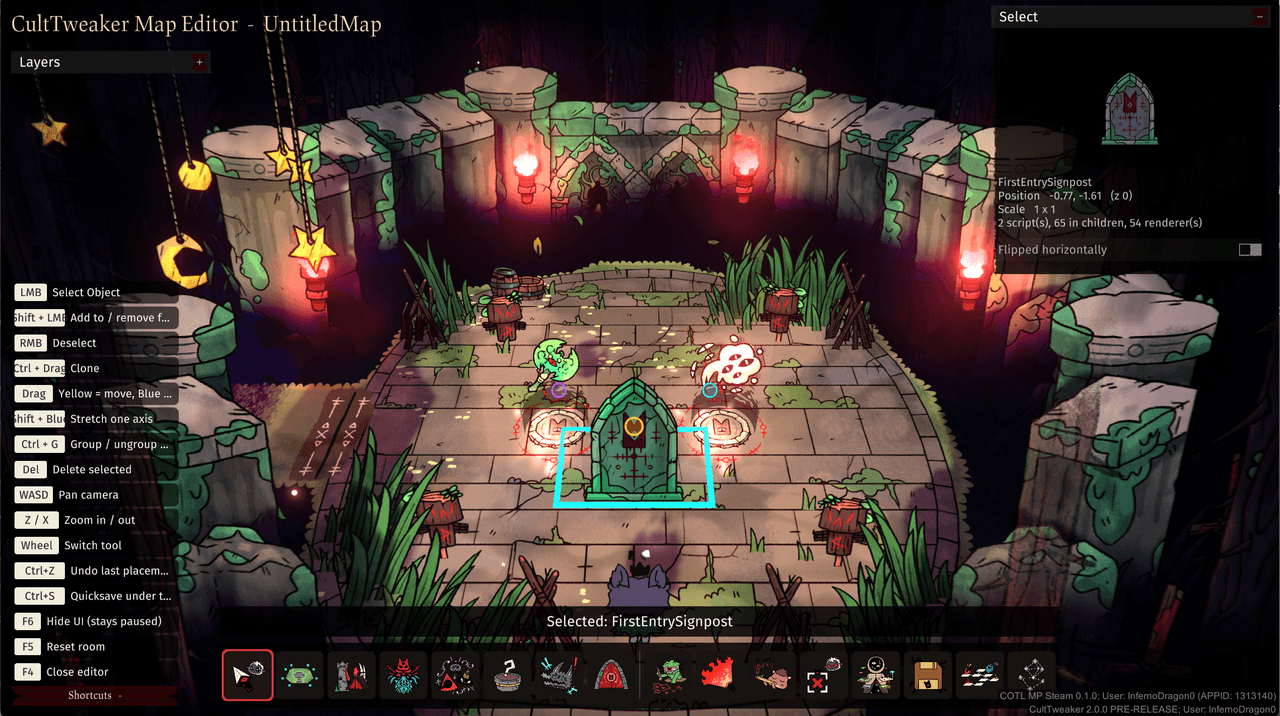
The panel names what you have picked and shows its position, its scale and a picture of it, along with how much is behind it - scripts, child objects and renderers - which is the quickest way to tell a single prop from a whole assembly. Flipped horizontally mirrors it in place.
Dragging is colour-coded: the yellow handle moves, the blue ones resize, and
Shift with a blue handle stretches one axis only.
Layers, multi-select and groups
The Layers panel at the left edge, opened with the + beside the shortcut
hints, lists every object in the room by what placed it - Shapes, Podiums,
Enemies, NPCs, Structures, Props and Triggers - under the same names the tools
use.
- Click a row to select that object with the Select tool. The tree follows your selection in the world and scrolls to it, and section headers stay pinned while you scroll.
Shift-click two rows to select the run between them, like a file list.- It is built for big rooms: a base town of six hundred objects scrolls and highlights without lag.
Multi-selection lives on the Select tool: Shift-click adds an object to the
selection or takes it out. Move and depth drags move everything together, one
undo puts the whole drag back, and Del removes the lot.
Groups are made with Ctrl+G: two or more selected objects become a group,
and picking any member picks the group. Ctrl+G on a whole group dissolves it,
and both are undoable. Groups are saved with the map and come back on load; the
Layers panel shows each group as a folder whose row selects the whole group.
Shape
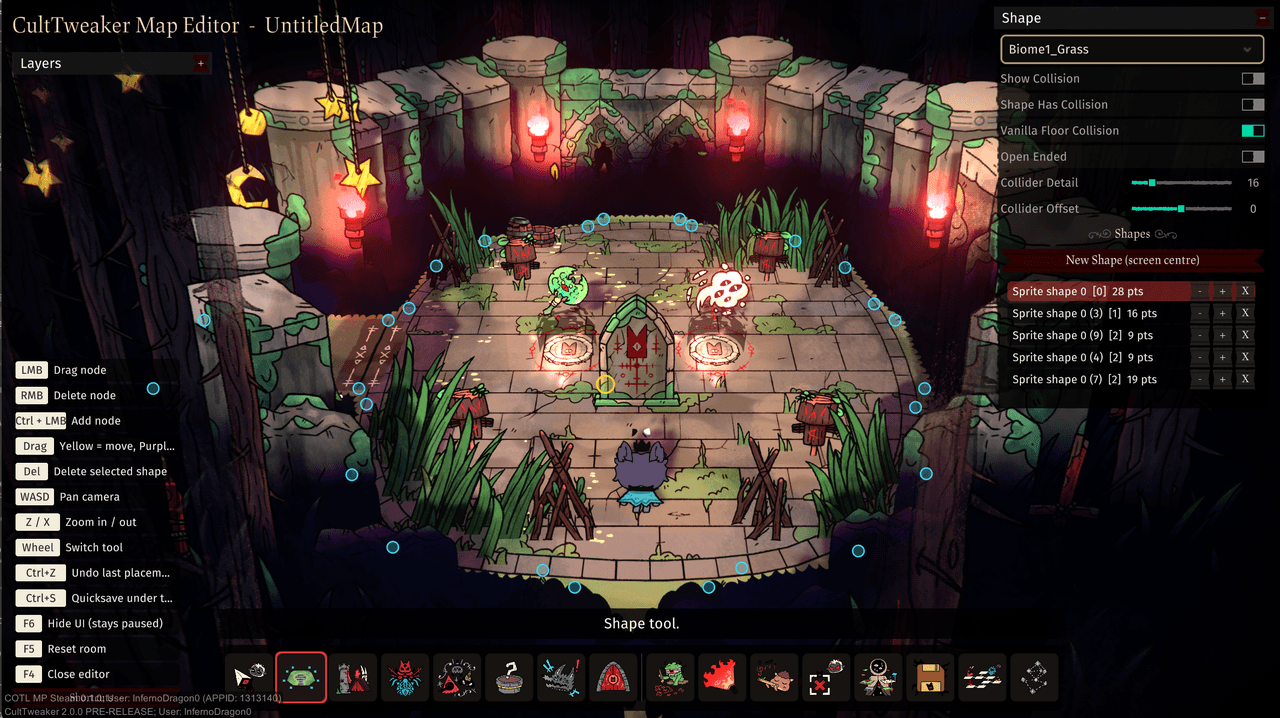
The dropdown at the top is the material the terrain is drawn from -
Biome1_Grass and the rest of the game's sprite shape profiles.
| Control | What it does |
|---|---|
| Show Collision | Draws the collider over the shape so you can see what it actually blocks |
| Shape Has Collision | Whether the outline blocks anything at all |
| Vanilla Floor Collision | Keeps the room's original floor collision underneath |
| Open Ended | Leaves the outline unclosed, for a ledge rather than an island |
| Collider Detail | How closely the collider follows the outline |
| Collider Offset | Pushes the collider in or out from the drawn edge |
New Shape (screen centre) starts another one, and every shape in the room is
listed below with its point count; - and + walk through them and X deletes
one. On the shape itself, LMB drags a node, Ctrl+LMB inserts one, RMB
removes one, and Del deletes the whole shape.
Structure
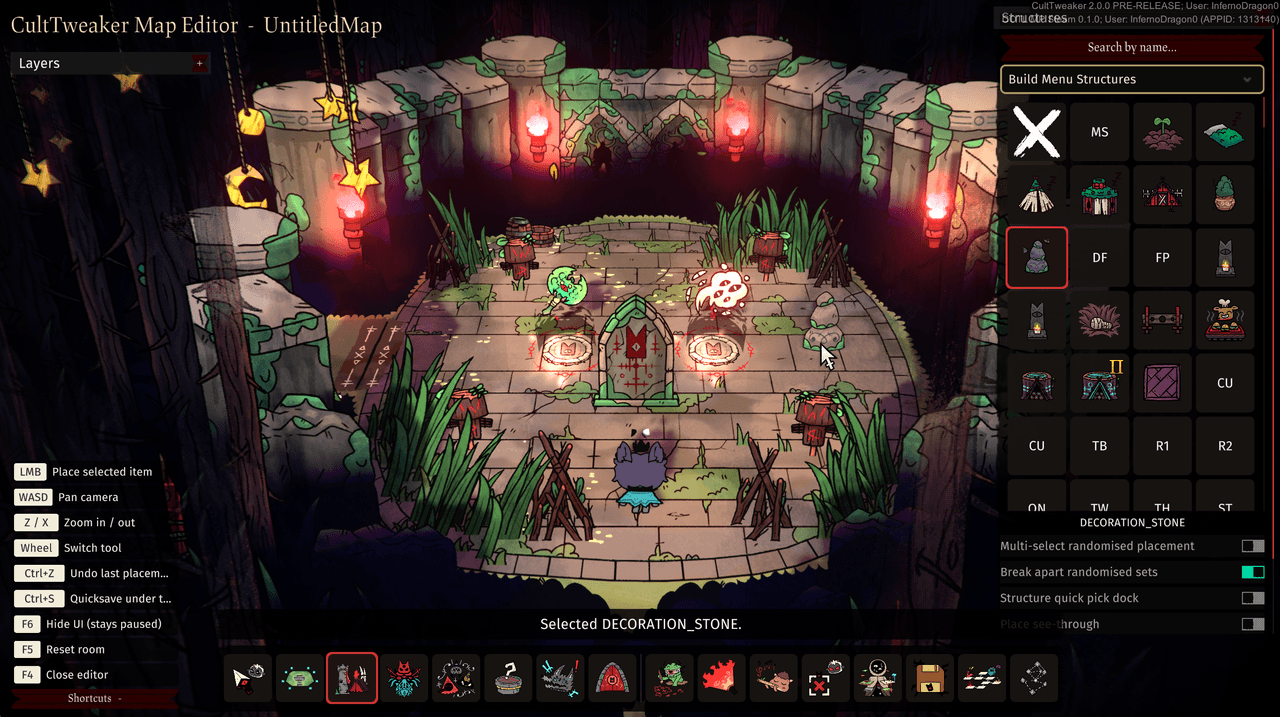
A search box and a category dropdown - Build Menu Structures, the DLC dungeon dressing, the Art groups, Tile Decorations and Custom - over a grid of everything in that group. The name of the current pick sits under the grid, and four toggles change how placement behaves: Multi-select randomised placement, Break apart randomised sets, a Structure quick pick dock for what you have been using, and Place see-through.
Enemy
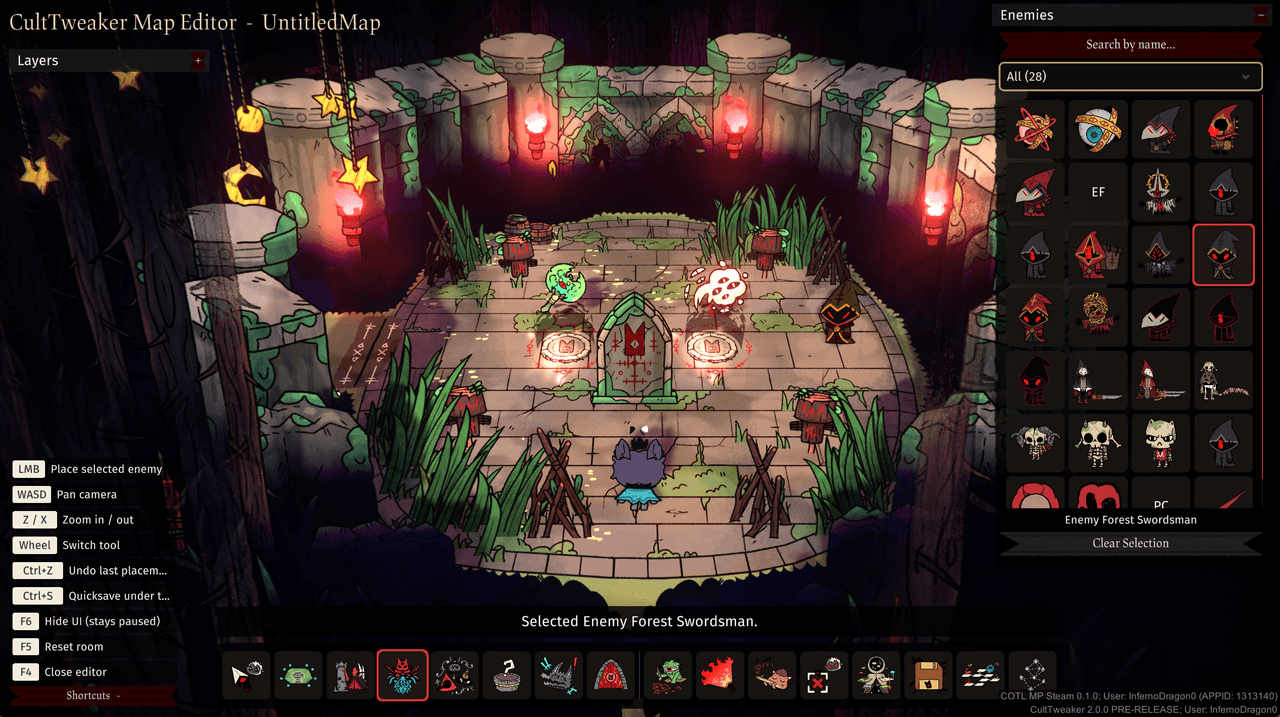
The same shape of browser: search, a category dropdown that starts on All with the count beside it, and a grid. The selected enemy is named under the grid, and Clear Selection puts the tool down without placing anything.
NPC
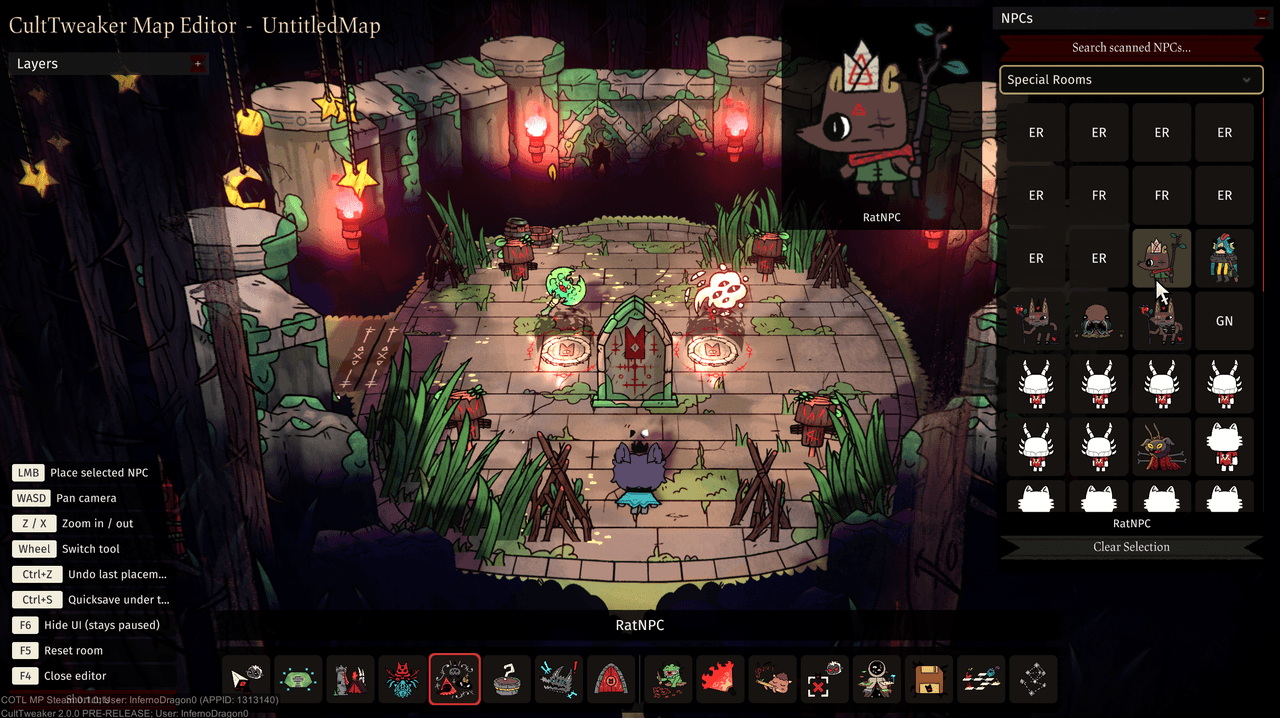
Search scanned NPCs covers everything CultTweaker found at startup, grouped by where they come from. Hovering a tile blows it up into a portrait with the NPC's name, drawn from the NPC's own spine - so a custom one looks here exactly as it will in the room.
Podium
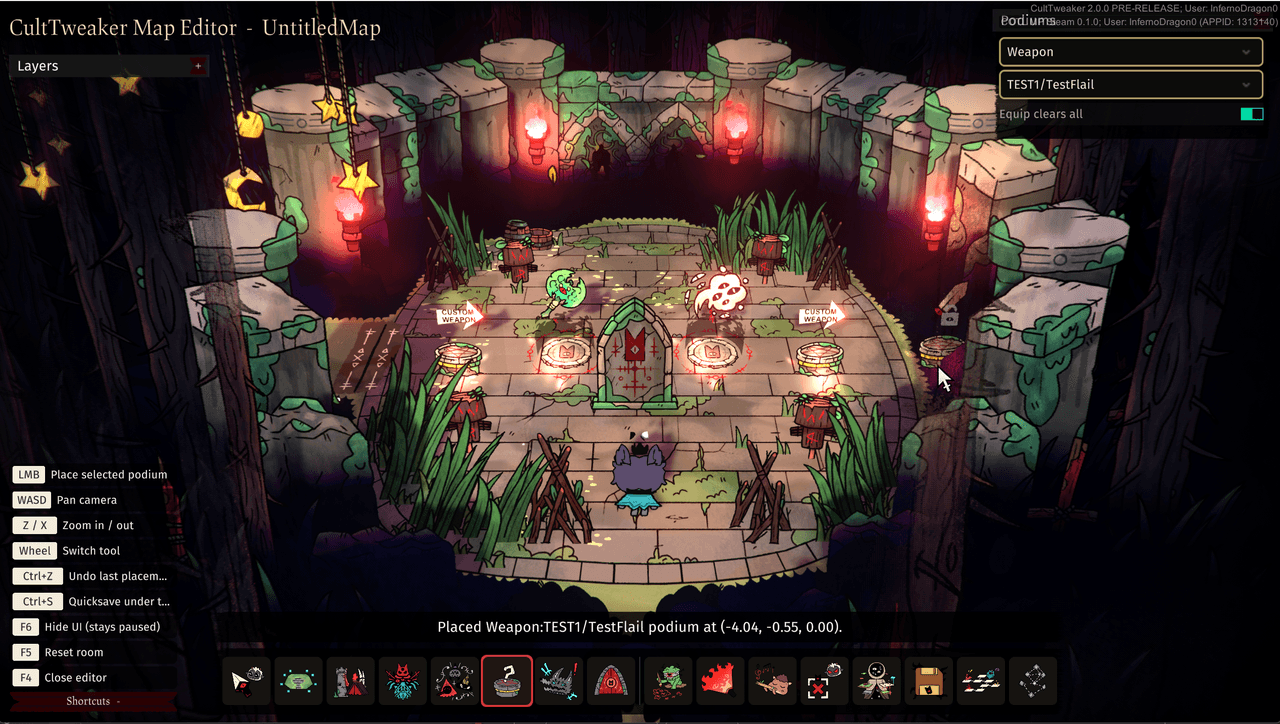
Two dropdowns: what kind of podium it is, and what it hands out. Custom rewards
are listed as Mod/Name, so TEST1/TestFlail is the TestFlail weapon from the
TEST1 mod. Equip clears all makes the room's other podiums disappear once
the player takes one, the way a vanilla weapon choice does.
Trigger
A trigger is a volume that runs a sequence of actions when the players enter it. It can also be marked a blocking volume, which turns it into an invisible wall for players and enemies, drawn in red, with enemy pathfinding routed around it as it is moved and resized.
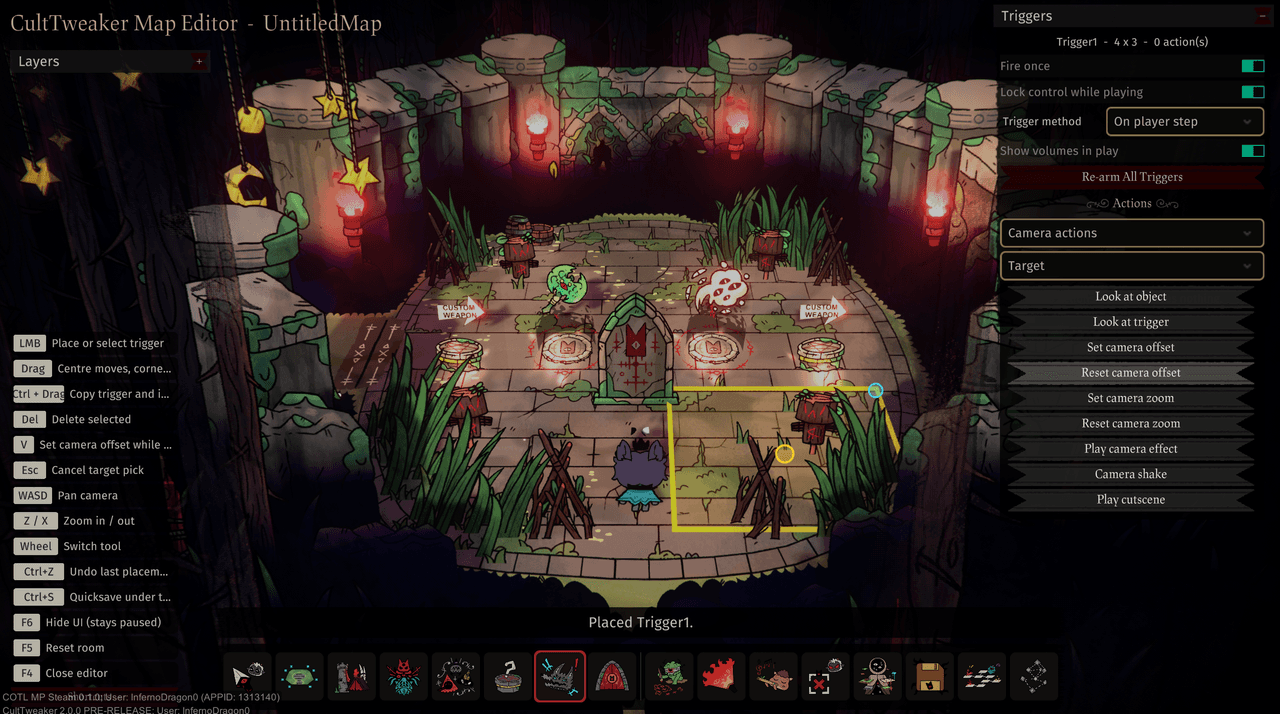
The header names the trigger, its size in tiles and how many actions it carries.
| Control | What it does |
|---|---|
| Fire once | The sequence runs a single time instead of on every entry |
| Lock control while playing | Takes input off the players while the sequence runs |
| Trigger method | What sets it off - On player step and the rest |
| Show volumes in play | Leaves the volume drawn outside the editor, for testing |
| Re-arm All Triggers | Arms everything in the room again, so a fire-once sequence can be tried repeatedly |
Actions are built underneath: pick a category, pick a Target if the action
needs one, then press the action itself; every action is listed below. While
picking, V sets the camera offset from the view you are looking at and Esc
abandons the pick; Ctrl-drag copies a trigger and everything on it.
Player
| Action | Target | Behaviour |
|---|---|---|
| Move players to trigger | another trigger's Id | Walks the players to that volume's centre. |
| Move players to object | a clicked object | Walks them to that object, falling back to the authored position. |
| Talk to custom NPC | a registered InternalName | Runs that NPC's dialogue tree and waits for it. |
| Play animation on players | an animation on the player skeleton | Plays it once, or loops it for 2 / 5 / 10 s. |
| Play animation on object | anything in the room with a spine | Plays one of its animations once or on a loop, with a choice of what happens when it ends so an enemy or NPC can return to its idle. |
| Hub spawn point | — | A mark, not a step: the trigger's position is where a hub's arrival walks the player to. A hub cannot be saved without one. |
Camera
| Action | Target | Behaviour |
|---|---|---|
| Look at object | a clicked object | Frames it for 0.5-8 s, then hands the camera back. |
| Look at trigger | another trigger's Id | The same, aimed at that volume's centre. |
| Set camera offset | framed in the editor | Shifts the camera relative to whatever it follows. |
| Reset camera offset | — | Back to centred on the players. |
| Set camera zoom | 1-10 | Follow distance; smaller is closer, 10 is the rig's own resting value. |
| Reset camera zoom | — | Back to whatever the rig was on before a trigger touched it. |
| Camera shake | — | Shakes the camera. |
| Play camera effect | chromatic aberration, vignette, desaturate, shake, letterbox in/out | Runs the effect and waits for it. |
| Play cutscene | a video in CustomCutscenes, or a vanilla one | Plays fullscreen and waits for it to end. |
Screen text
| Action | Where |
|---|---|
| Caption | Bottom left, left aligned. |
| Title | Top centre. |
| Fullscreen text | Centred, over a screen dimmed to 75%. |
Each takes a typed title and subtext.
Enemies and ambient
| Action | Target | Behaviour |
|---|---|---|
| Pause enemy AI | every enemy in the room, or a clicked one | Freezes it where it stands - no decisions, no movement, the pose held. Does not wait. |
| Resume enemy AI | the same two choices | Hands it back to its own AI, at the animation speed it had. |
| Apply lighting | a saved lighting profile, or "Vanilla lighting" | Cross-fades the room's lighting over 1 / 2 / 4 s, or instantly, then moves on. Vanilla restores the biome's own values. |
| Change music | an FMOD music event | Starts the track and keeps it looping. Does not wait. |
| Open world map | a saved world map | Opens it and waits until it closes - a hub's travel portal. |
| Return to base | — | Ends any run and sends the players home, as the dungeon portal does. Nothing after it runs. |
Door
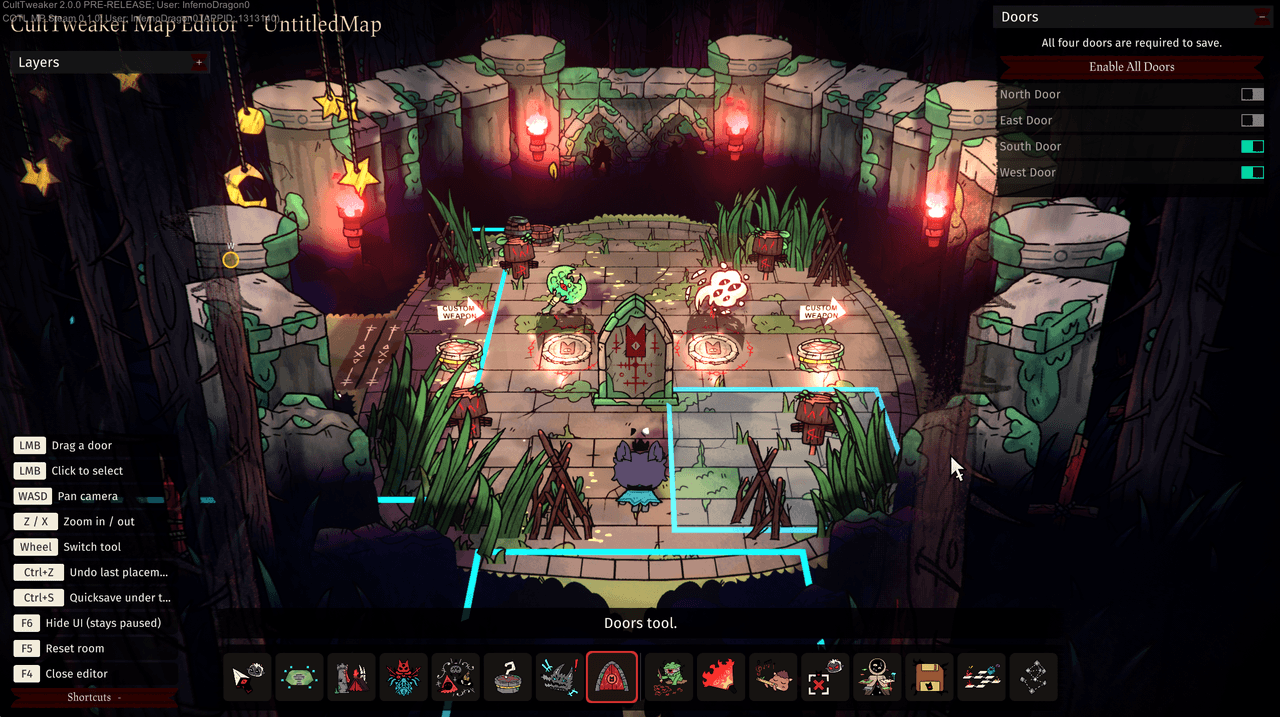
All four doors are required to save - a room blueprint carries a north, east,
south and west door whether or not a given level uses them. Each has its own
toggle, Enable All Doors turns the lot on at once, and the volumes themselves
are dragged around the room's edge with LMB.
Lighting
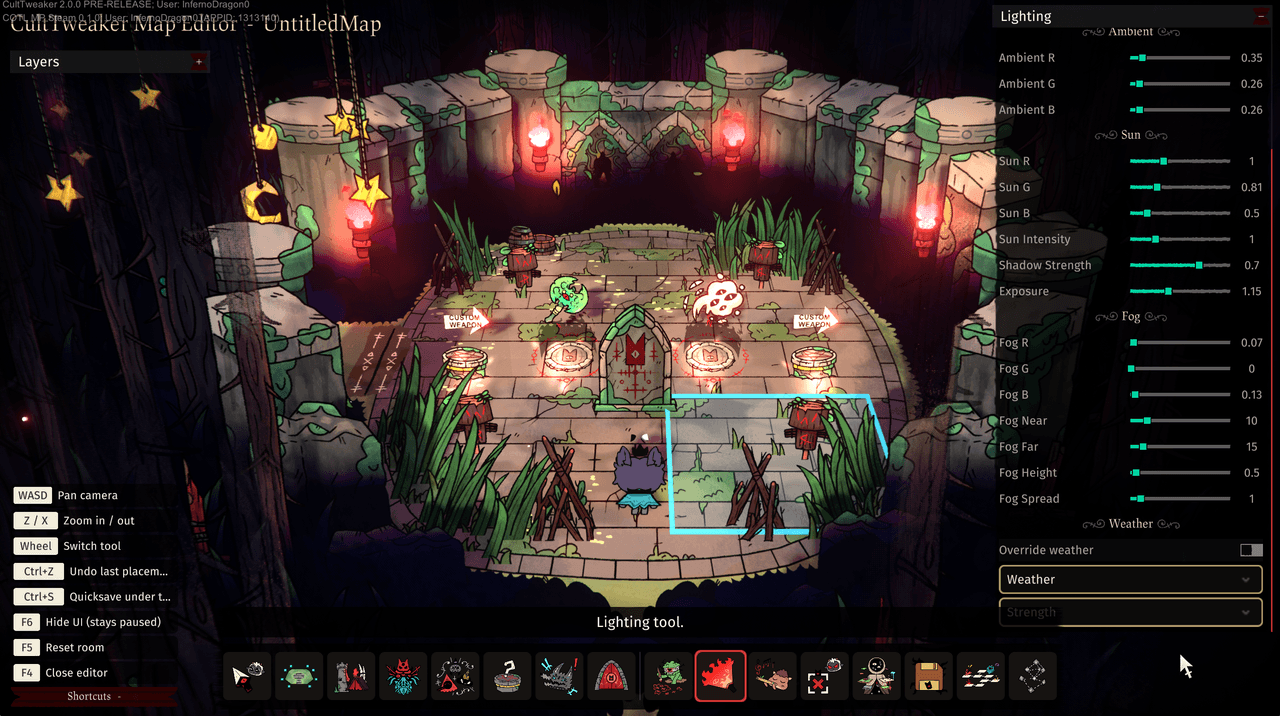
Everything here is a live slider - the room relights as you drag.
| Group | Values |
|---|---|
| Ambient | R, G, B |
| Sun | R, G, B, Sun Intensity, Shadow Strength, Exposure |
| Fog | R, G, B, Fog Near, Fog Far, Fog Height, Fog Spread |
| Weather | Override weather, then which weather and how strong |
The values are saved with the room. Cross-fading to a saved profile during play is the trigger action Apply lighting, not this panel.
Music
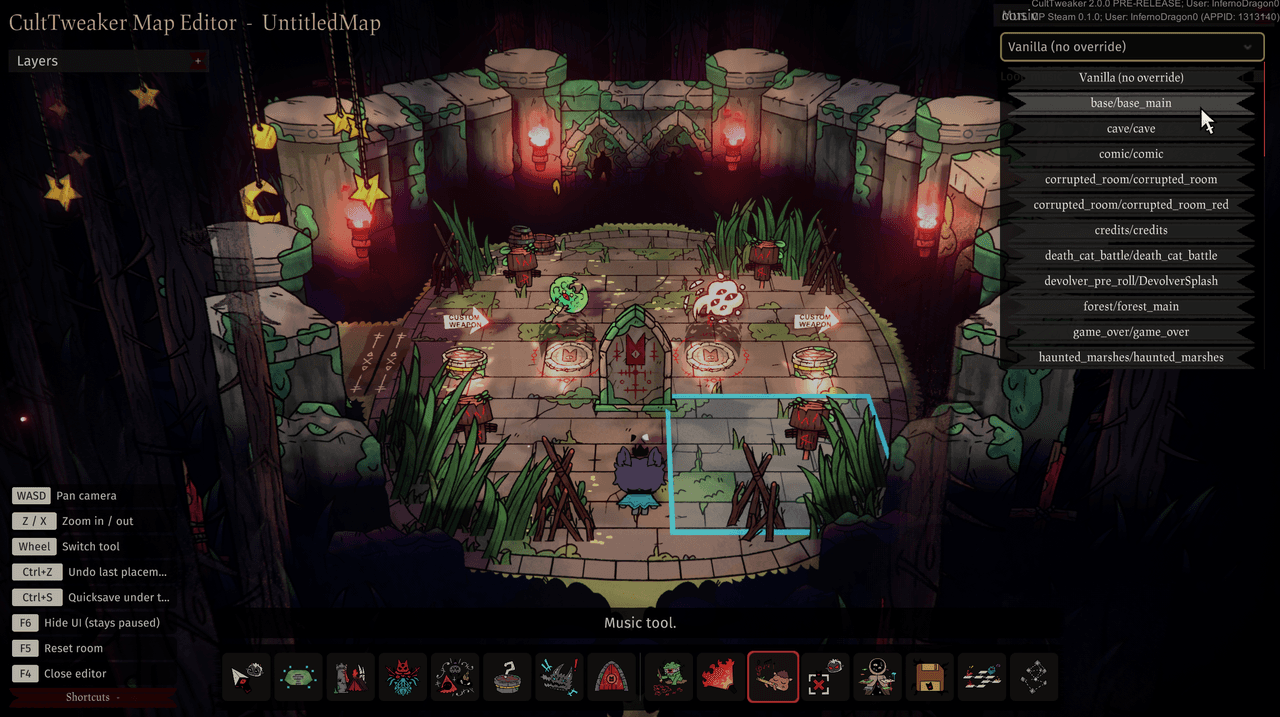
One dropdown of the game's own FMOD events, listed as bank/event -
base/base_main, cave/cave, forest/forest_main,
haunted_marshes/haunted_marshes, death_cat_battle/death_cat_battle and the
rest, including the credits and the Devolver splash. Vanilla (no override) at
the top leaves the room playing whatever it normally would.
Clear
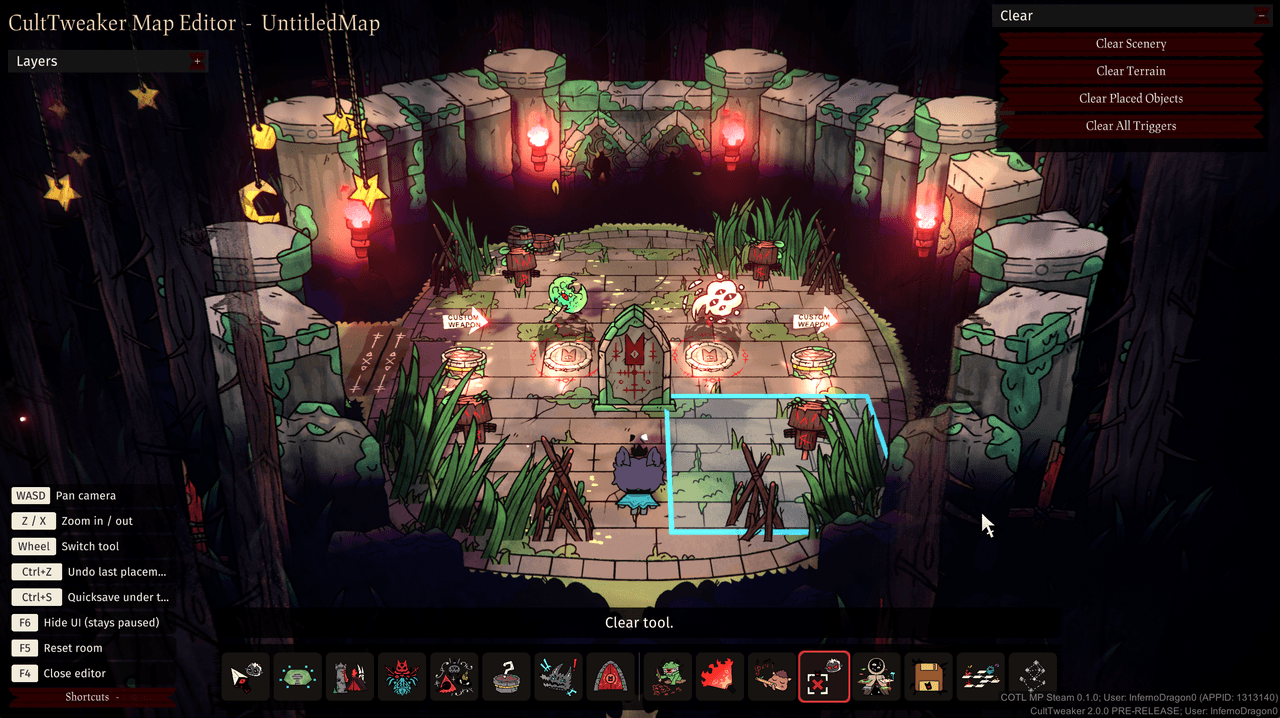
Four buttons, each wiping one kind of thing: Clear Scenery for the vanilla dressing, Clear Terrain for the shapes, Clear Placed Objects for everything you put down, and Clear All Triggers.
The whiteboard
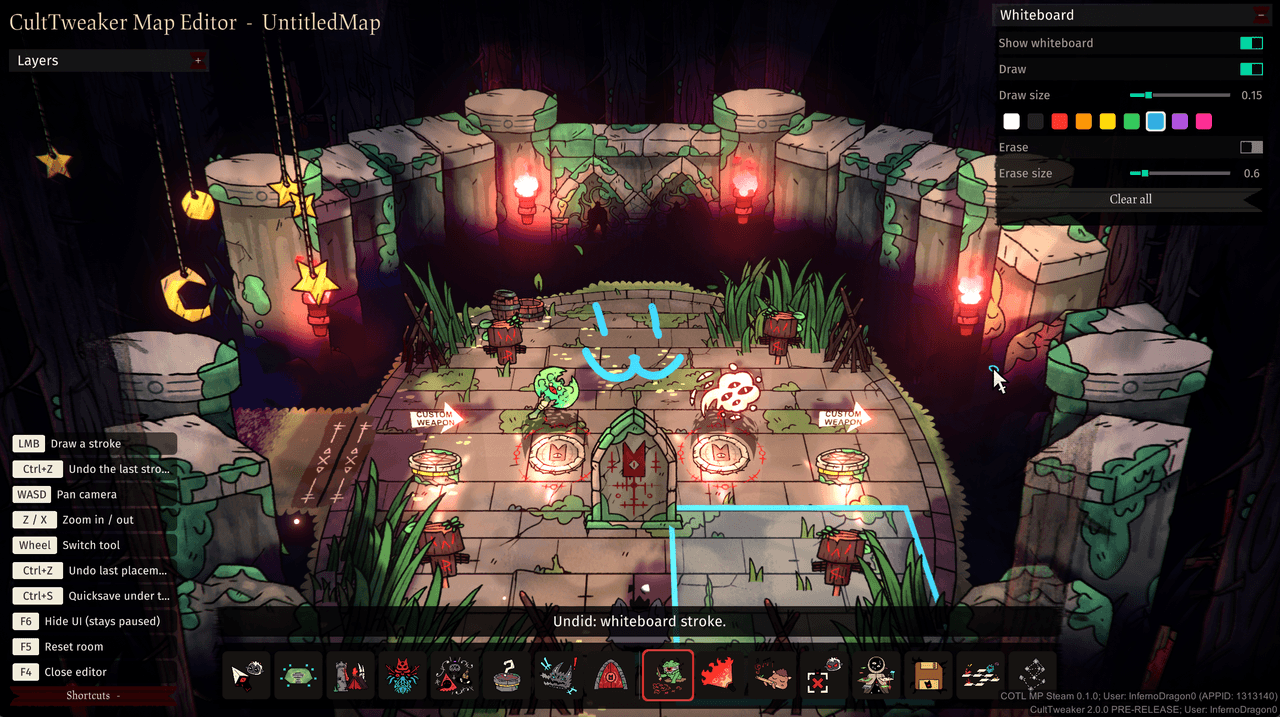
The Whiteboard tool draws freehand over the room, in the world, to plan with: a Show whiteboard toggle, Draw with a size slider and nine colours, Erase with its own size, and Clear all.
Strokes are never selectable and never part of the room. They show only while the editor is open, are saved with the map, and travel to the other player live as you draw. One drag is one stroke and one undo; an erase drag is one undo too, and Clear all wipes the board in a single undoable step. The chosen colour shows a white border instead of being covered, and the brush lands exactly under the cursor.
Saving and loading
Ctrl+S quicksaves under the current name; the Save tool names a new map through
the game's own naming modal, with a live overwrite warning. Rooms are saved to
CustomNodeBlueprints, levels to CustomLevelBlueprints, dungeon maps to
CustomDungeonMaps, world maps to CustomWorldMaps, base edits to
CustomBaseMaps and menu presets to CustomMainMenus.
A room blueprint is a full snapshot: loading always clears the room first, so a deleted object is simply absent from the snapshot and vanilla scenery is captured as props. Structures and custom enemies are stored by name, never by enum id, because vanilla ids shift between game versions and custom ones are minted at runtime.
Every object saved by pre-release 6 also carries an id, so it can be told apart from its neighbours across a save, a load and a second machine. Maps saved by pre-release 5 still open.
The Load Map browser is a full screen with a picture and details of the map you pick, and click-to-enlarge on the picture.
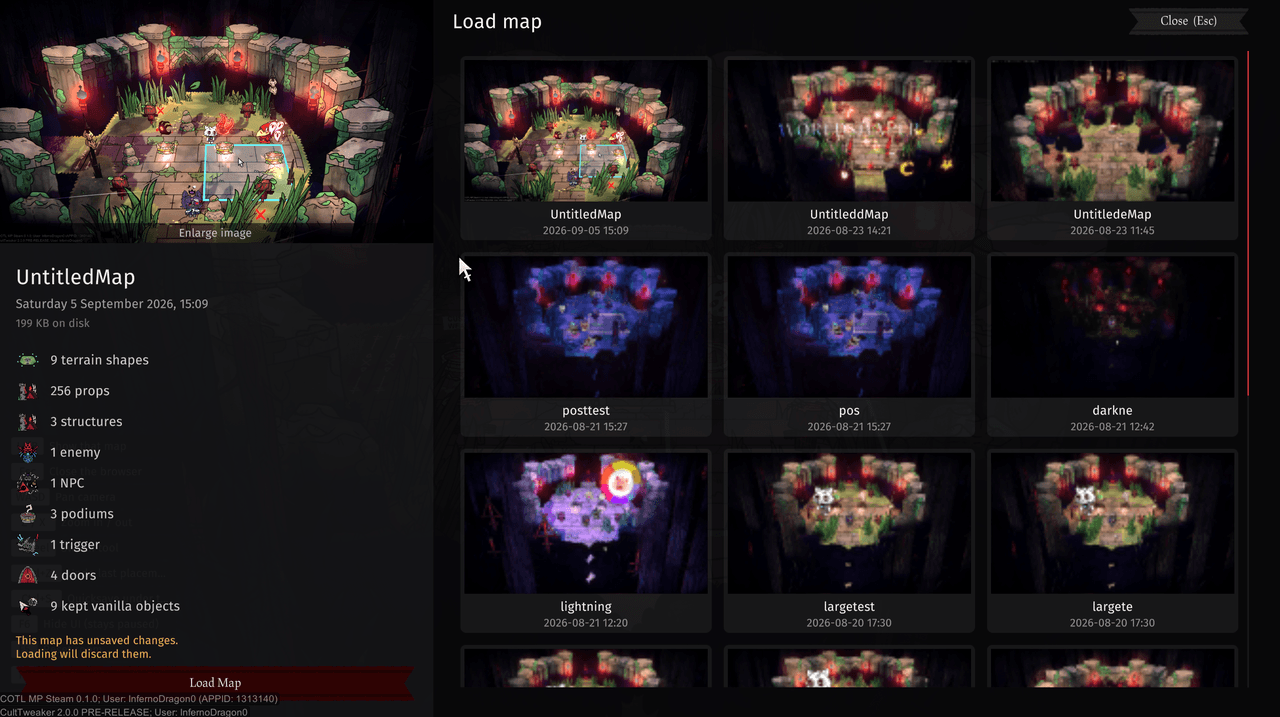
Saved rooms are tiled by name and date. Picking one fills the left-hand pane with its picture, when it was saved, how much it takes on disk, and a count of what is in it - terrain shapes, props, structures, enemies, NPCs, podiums, triggers, doors and the vanilla objects the room kept. If the room you are standing in has unsaved changes, the pane warns you before Load Map discards them.
Dungeon builder and levels
The Level tool assembles rooms into a floor:
- Hand-built floor layouts ("custom walk") on a visual layout screen, or a random walk tickbox
- Auto-connecting doors, fixed entrance and exit rooms, and a choice of vanilla podium entrance and exit rooms
- A pool of maps per room, one picked at random per run
- Combat and Reward room markers
On the layout screen:
| Gesture | Does |
|---|---|
Ctrl + left click | Add a room in that cell, doored to everything it touches |
| Left click | Select a room; drag to move it |
| Right click a room | Open or close the door between it and the selection |
Del | Delete the selected room |
Ctrl+S / Ctrl+Z / Esc | Quicksave, undo, close |
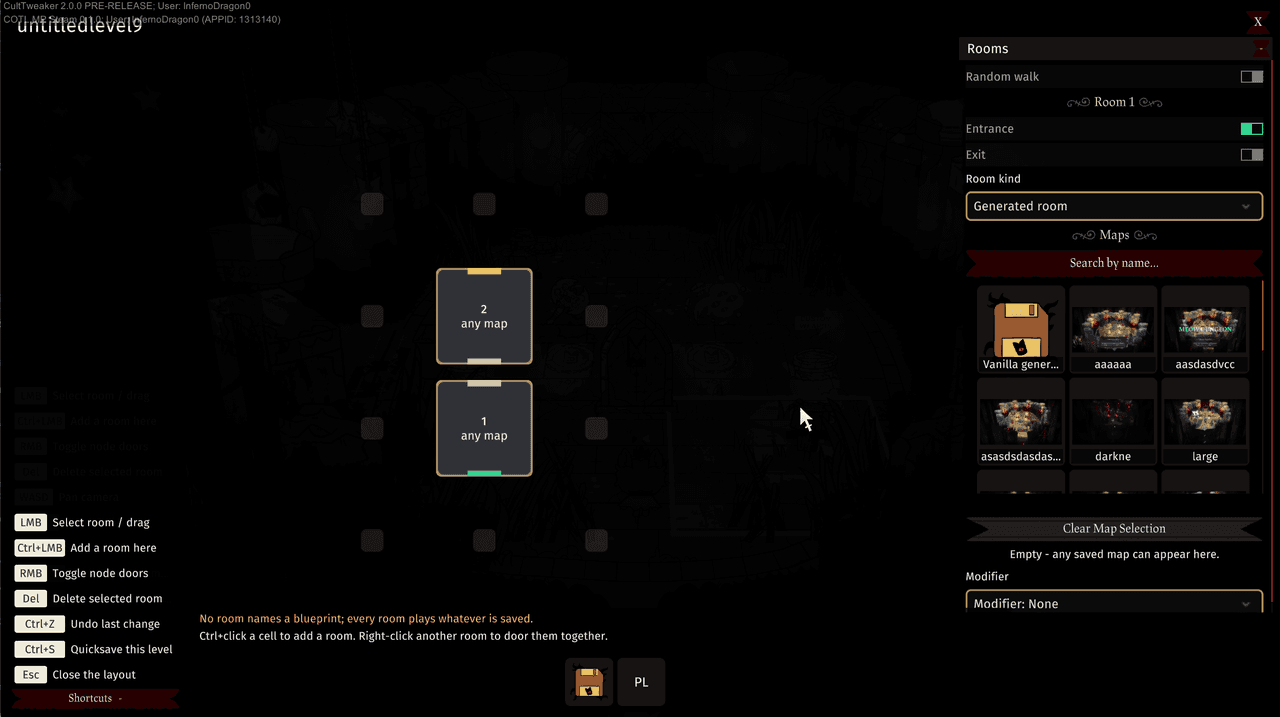
Rooms are numbered in the order the run visits them, and the coloured tab on a cell's edge marks its doors. Selecting one opens its settings on the right: Entrance and Exit mark where the floor starts and ends, Room kind chooses what sort of room it is, and Modifier applies one of the game's room modifiers.
Under Maps is that room's pool: search the saved rooms and pick as many as you like, and the run draws one of them at random. Leave the pool empty - it says so - and any saved map can come up there. Clear Map Selection empties it again.
The Dungeon Builder is a full-screen map drawn with the game's own artwork.
Nodes are placed freely: Ctrl+click places, right-click links or cuts, Del
deletes, and placing beside a selected node links it automatically. Any node can
lead to any other, links follow a node as it is dragged, Preview Map shows
the result, and the builder checks live whether the map will actually play. Close
it with Esc, the X button or F4.
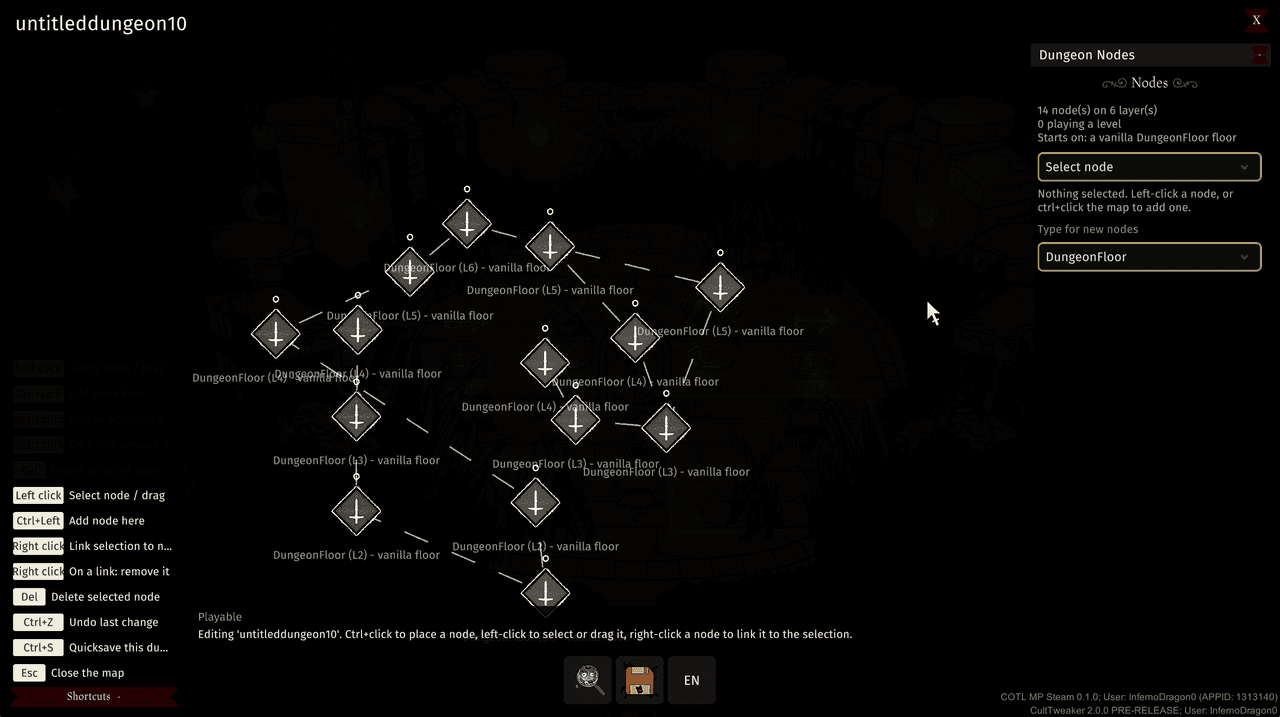
The panel keeps a running readout: how many nodes over how many layers, how many of them play a level of yours rather than a vanilla floor, and which floor the run starts on. Type for new nodes is what the next node will be, and each node is labelled in the map with its type, its layer and what it leads to. Playable in the corner is the live check - it tells you the map will actually run before you try it.
Where a run's exit door leads depends on the layer it is on:
| Where the run is | What the exit door does |
|---|---|
| Below the top layer | Opens the map selector to pick the next floor |
| On the top layer | Shows the completion screen - the run is over |
| Map not playable or missing | Shows the completion screen |
The base editor
The base editor, started from the F7 panel, edits your real town - structures, terrain and paths - with the same F4 tools. Every change is kept in the mod's own files; the game's save is never written to.
| Tier | What | Can be |
|---|---|---|
| Editable | What this mod placed, and inert scenery - trees, rocks, grass | moved, resized, deleted |
| Move only | Everything else of the player's: shrines, temples, beds, farm plots, dungeon doors, the town centre, the build totem | moved |
| Protected | Followers and their pets, and the placement region object | nothing |
Structures that block the camera while you edit turn see-through.
Hubs and the build totem
A hub is a safe town built in the emptied DLC town. The F7 panel offers three entries:
| Panel control | What happens |
|---|---|
| New Hub | Travels to the base, raises the town room, empties it, opens the editor on a blank hub |
| Edit Hub | The same trip, then rebuilds the saved hub in the room for editing |
| Visit Hub | The same trip, then rebuilds it and leaves the player in it |
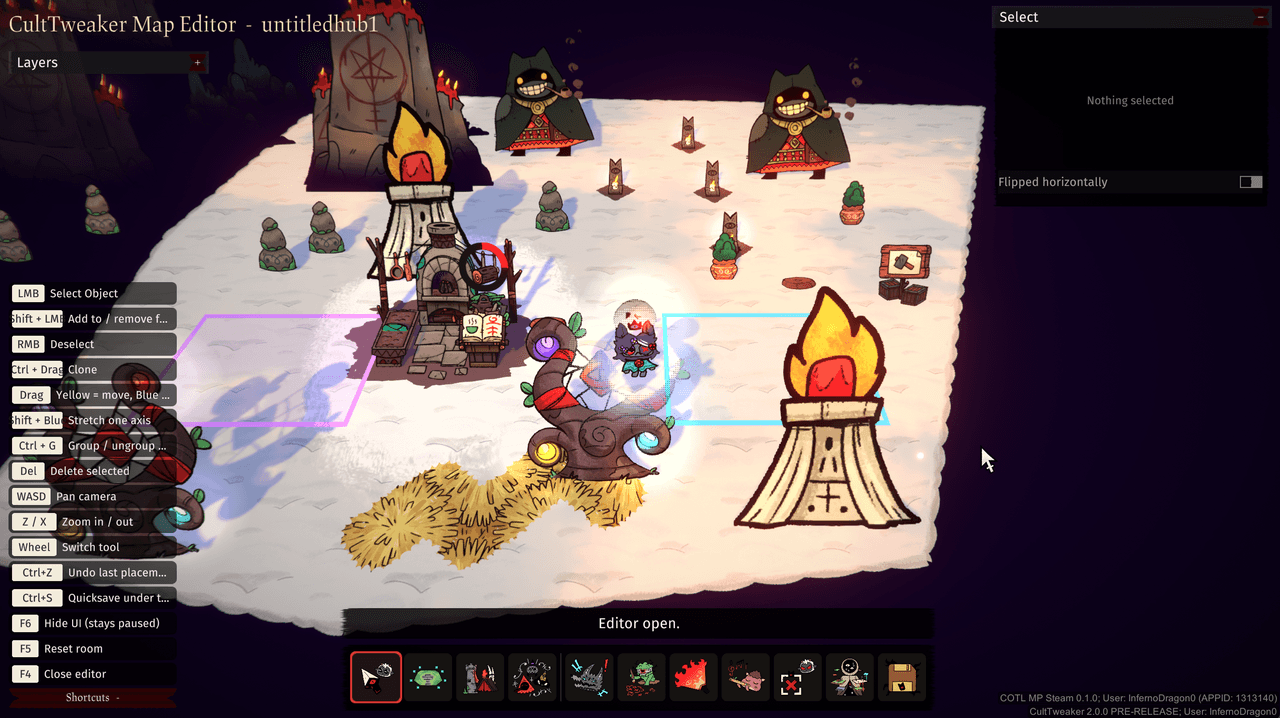
A hub is edited with the same F4 tools, minus the ones a town has no use for:
there are no enemies, podiums or doors in the hub toolbar, and no level or
dungeon screens.
Every hub needs a trigger carrying the Hub spawn point action - that is where arrivals walk in, and a hub cannot be saved without one. Add Return to base or Open world map triggers as portals.
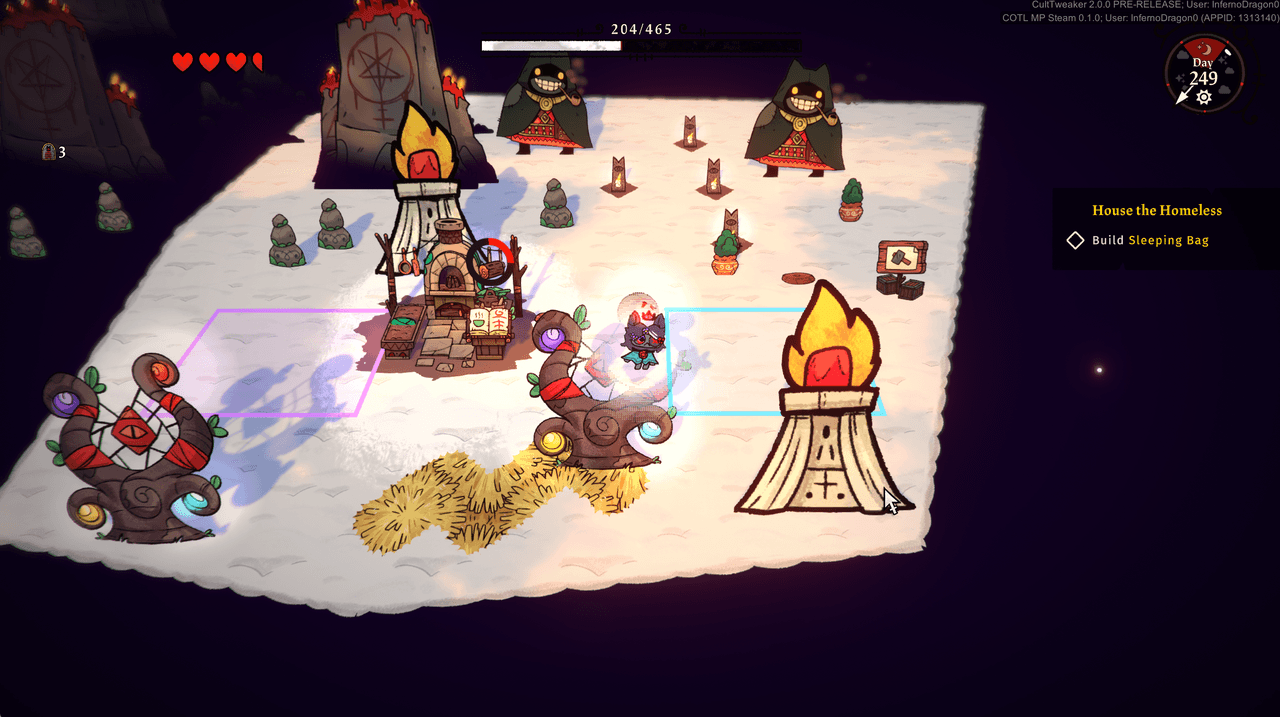
Visited, it is an ordinary part of the game: the day clock runs, quests track, and followers go about their business in it.
The build totem lets a hub's structures be built during play through the game's own build menu, at costs you set. Building costs and refunds are kept in the hub rather than the save, and a placement region stops hub building from reaching your real town.
World maps
The world editor, opened from the F7 panel's World Maps section, builds a custom overworld in the shape of the DLC's Ewefall map: a full-screen travel menu built from the map's own art, with travel nodes that unlock outward from what the player has completed. The vanilla DLC map is never touched, and completion lives in the mod's own per-save-slot file.
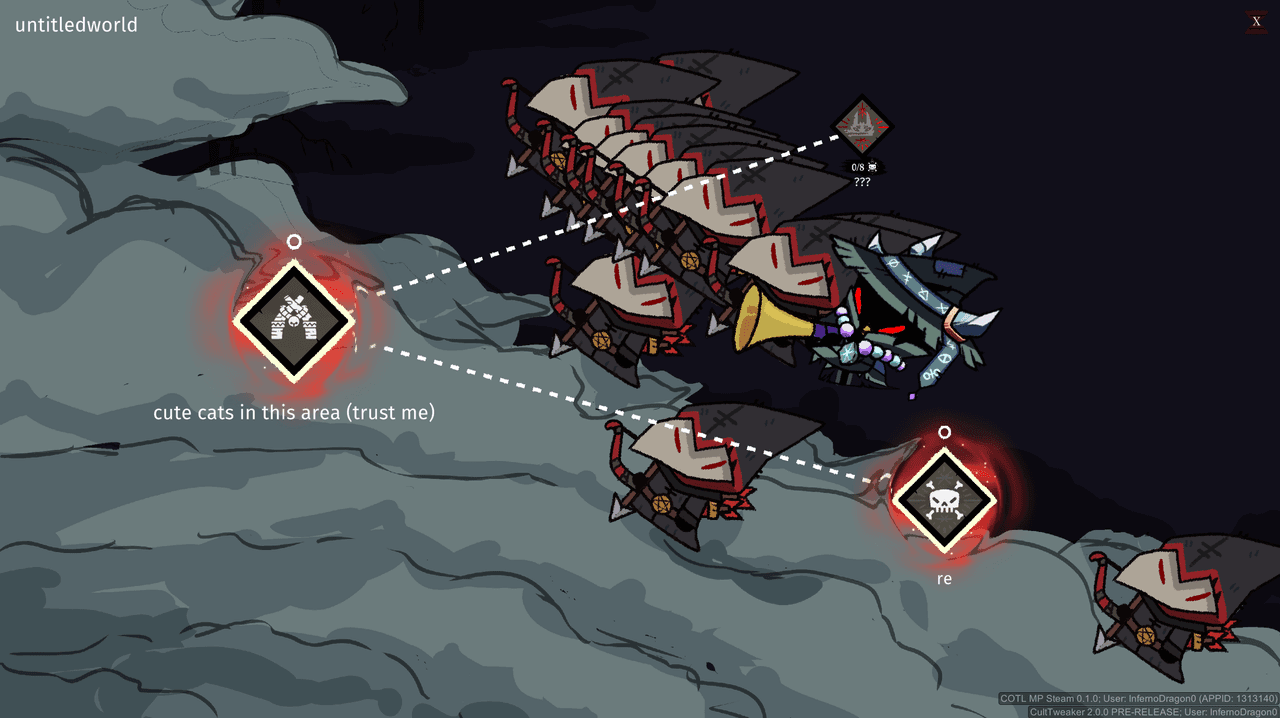
Nodes sit on the map's own artwork and are joined by dashed paths. Each carries
the vanilla styling for its kind, its own label, and - where one is set - its
lock: the node here asks for eight keys and shows ??? until it is opened.
CustomWorldMaps/
    <MapName>/
        config.json      the map (layers + nodes)
        *.png            sprite layers and node icons, referenced by file name
        <SpineFolder>/   one spine per subfolder: skeleton .json + .atlas + pages
    progress_slot<N>.json    per-save-slot completion (managed by the mod)
F6 flips between edit and play view.
Nodes and unlocking
Positions are in the canvas's 1920x1080 reference space. A node's Id is a
string it keeps forever - progress is keyed on it, so renaming a node orphans
progress earned under the old id.
States follow the DLC cascade: a completed node's children become selectable, its grandchildren become a grey preview ("???"), and everything further stays hidden. States only ever upgrade when branches meet. On top of that:
InitialState(Hidden/Preview/Selectable) is what a node is before any completion reaches it. The starting node is authoredSelectable.- A Base node is home: selecting it closes the map, it never completes, and its children unlock from the start.
- A Key node banks
KeysGrantedkeys when completed, once however often it is replayed. - A Lock node surfaces where a selectable node would be, priced at
KeysCostkeys, and blocks its branch until opened. An opened lock passes completion straight through. A lock is the one node that asks before it acts. RequiredCompletedCountplusRequiredNodesholds a node at preview until N of the listed nodes are completed.
A node's destination is TargetKind plus Target: a saved dungeon map from
CustomDungeonMaps, a saved level from CustomLevelBlueprints, or None,
which completes on the spot when selected. Completion is recorded only when a run
entered from the map ends in the success path - dying records nothing.
NodeType chooses which vanilla node style is borrowed:
| NodeType | Vanilla style |
|---|---|
Base | The home node |
Dungeon | A standard Ewefall dungeon |
MiniBoss / Boss | The miniboss / boss nodes |
Key / Lock | The key and lock nodes, with their extra outline |
Reward | The reward cache |
Layers
Sprite layers are the PNG at its authored pixel size, tinted and scaled as configured. Spine layers render on the canvas and animate even while the world is paused; for them, scale 1 means the size the game draws that skeleton at, matching what 1 means for a sprite.
ParallaxDistance (0 pinned, 1 moves most) drifts a layer toward the mouse in
play view. The editor keeps everything pinned so placement is exact.
The menu editor
Customize Menu on the title screen opens the main menu editor. Looks are
saved as named presets under CustomMainMenus/, a folder each with a
config.json beside its art, and the chosen preset dresses the menu on every
launch.
- The Look tool: palette pick and blend, background colour, hue / saturation / brightness, dither, grain, the glitch effect, and a negative effect for the field behind the lamb.
- The Centrepiece tool: skin, animation, position, scale and rotation for the lamb - or a custom spine dropped into the preset's folder.
- The Title tool: replace the logo with any PNG, move, resize or hide it, and set, move, recolour or hide the edition line.
Drop a PNG into a preset's folder to use it as the title; drop a spine folder
(.json + .atlas + pages) to stand it where the lamb is.
Editing together
With COTL MP Steam on both machines - a build that includes editor sync - press F4 in the base while in a session and the world pauses for both players. The other player is invited in chat and can press F4 to edit with you.
- Your selection is cyan, theirs is amber, on the object, its outline, their cursor and in the layer list.
- An object the other player has selected or is dragging is locked until they let go.
- Moves, resizes and reshapes show on the other screen while the mouse is still down, not only on release; lighting changes fade in.
- Saving from either side saves on the host's machine; the guest receives the files.
- Custom dungeon levels work in a session: the host starts a level, the guest follows into the same layout with the same rooms, and both can edit the rooms together.
- If the two rooms ever disagree, the Resync button in the shortcut panel
puts them back in step.
MapEditor / NetVerbosein the config logs every change sent and received, and a Sync self-test button runs the room through the sync on one machine.